IPTV Setup on Windows PC
Watch IPTV on Windows 10 and Windows 11. Use VLC, Kodi, or dedicated IPTV apps. Complete setup guide with screenshots.
Windows offers multiple options for IPTV - VLC Media Player, Kodi, or dedicated IPTV apps. We recommend our Windows app for the best experience.
What You Will Need
- • Active ScopMedia IPTV subscription
- • Stable internet connection (10 Mbps+ for HD, 25 Mbps+ for 4K)
- • Your device connected to the same network
Step 1: Get Your M3U Playlist URL
Log into your ScopMedia account. Copy your M3U playlist URL from the dashboard. Format: http://server.com/get.php?username=XXX&password=XXX&type=m3u_plus. Keep this URL private.
Step 2: Option A: Use VLC Media Player
Download VLC from videolan.org. Open VLC → Media → Open Network Stream. Paste your M3U URL and click Play. For EPG, use the playlist view.
Step 3: Option B: Use Our Windows App
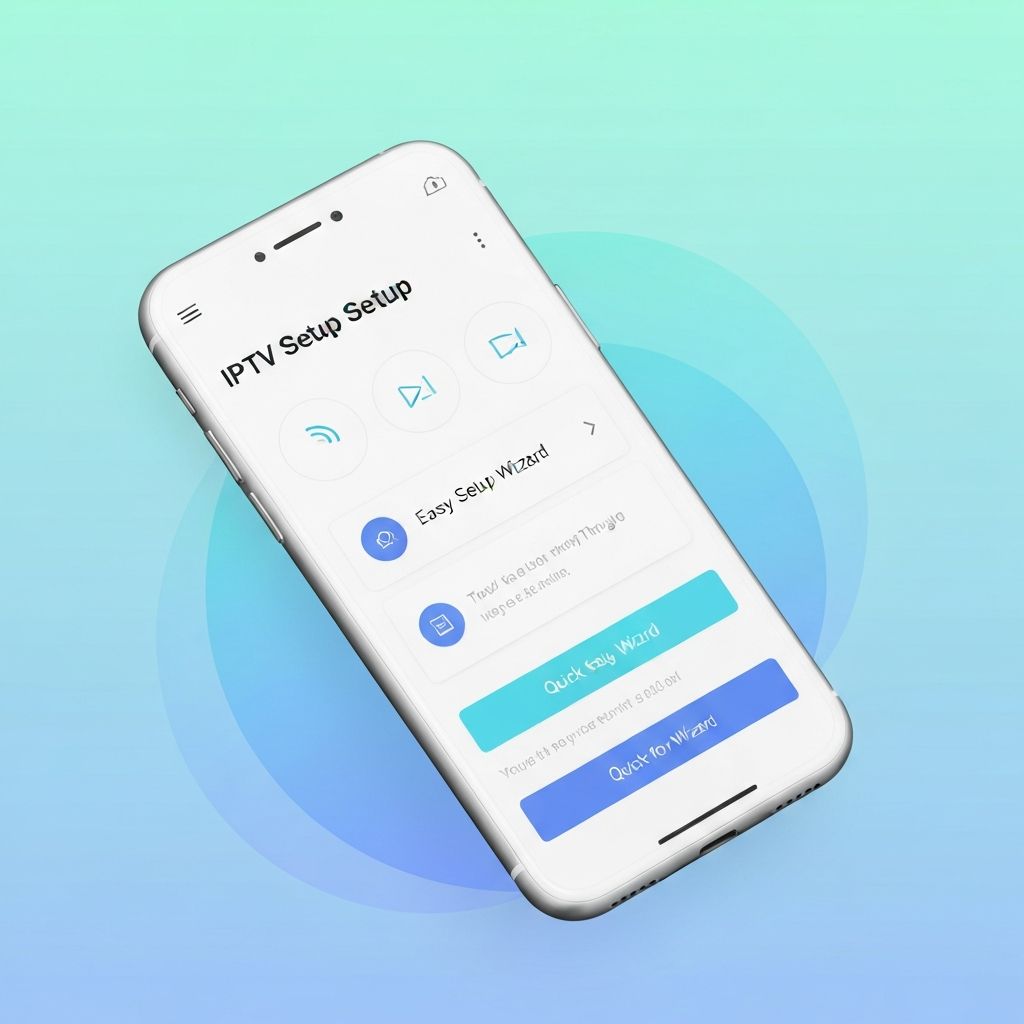
Download our Windows IPTV app from the link in your welcome email. Install and launch. Enter your username and password - no need to copy URLs. The app handles everything.
Step 4: Enter Credentials
Whether using VLC or our app, enter your ScopMedia login. For M3U: use the full URL. For our app: username and password only. Click Connect or Play.
Step 5: Browse and Watch
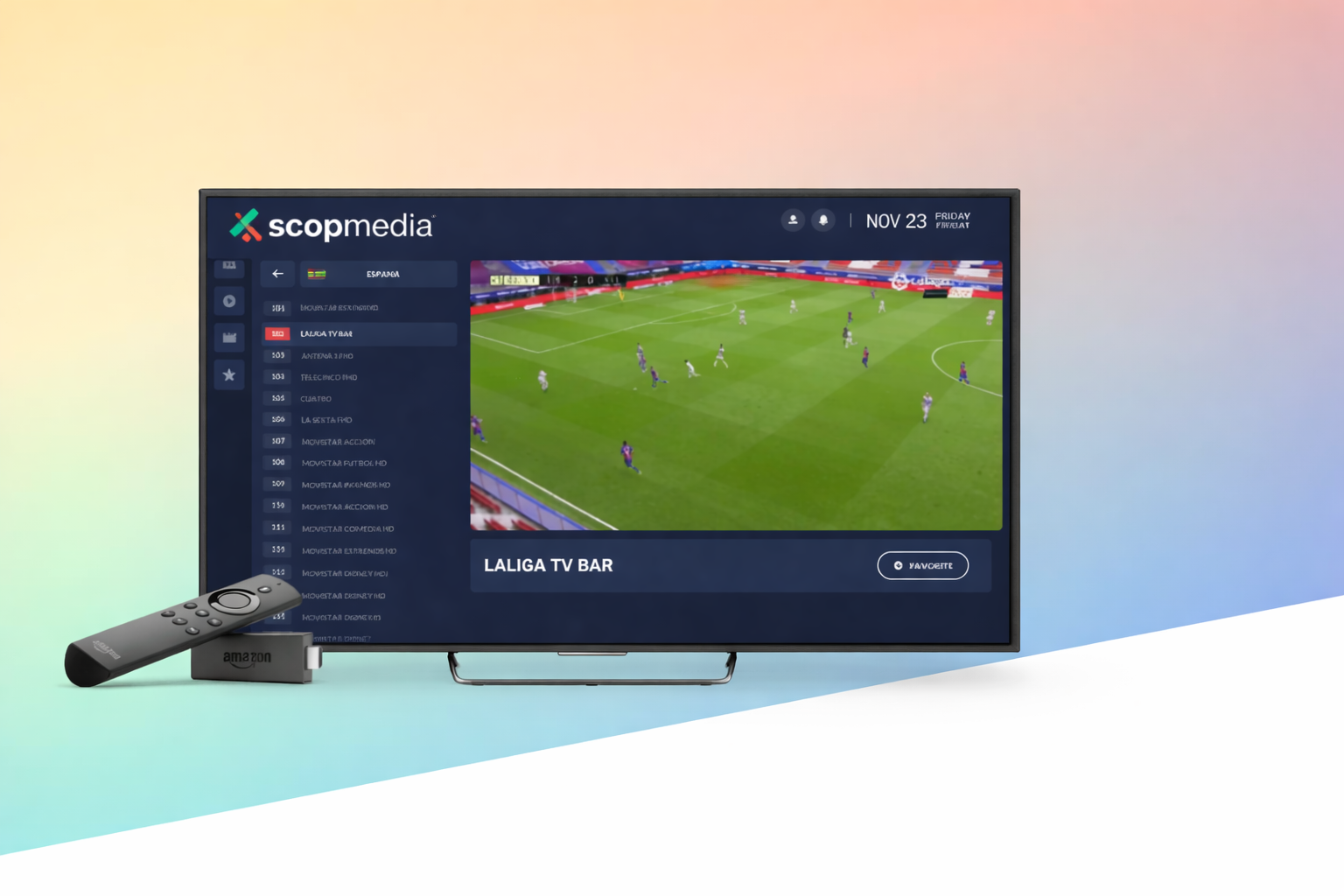
Your channel list loads. Use the playlist sidebar in VLC or the app interface. Double-click any channel to watch. Use keyboard shortcuts: Space for play/pause, F for fullscreen.
Step 6: Connect to TV (Optional)
Use HDMI to connect your PC to your TV for a big-screen experience. Or use Windows casting to stream to a Smart TV. Set your PC display to extend or duplicate.
Need Help? Get Support
Our 24/7 support team is ready to assist with your setup. Contact us anytime.