IPTV Setup on Android Box & TV Box
Complete guide to install IPTV on Android TV boxes, Xiaomi, Nvidia Shield, and generic Android devices. Works with any Android 5.0+ device.
Android boxes offer the most flexibility for IPTV. Most support direct APK installation and work with our app. Follow these steps for any Android TV device.
What You Will Need
- • Active ScopMedia IPTV subscription
- • Stable internet connection (10 Mbps+ for HD, 25 Mbps+ for 4K)
- • Your device connected to the same network
Step 1: Enable Unknown Sources
Go to Settings → Security (or Apps) → Unknown sources. Enable "Install unknown apps" or "Unknown sources". Different brands use different menu names - look for security or app permissions.
Step 2: Download the IPTV APK
Open your browser or Downloader app. Visit the download link from your ScopMedia welcome email. Download the APK file to your device. File size is typically 15-30 MB.
Step 3: Install the App
Open your file manager and locate the downloaded APK. Tap to install. Grant any requested permissions. Tap "Open" when installation completes.
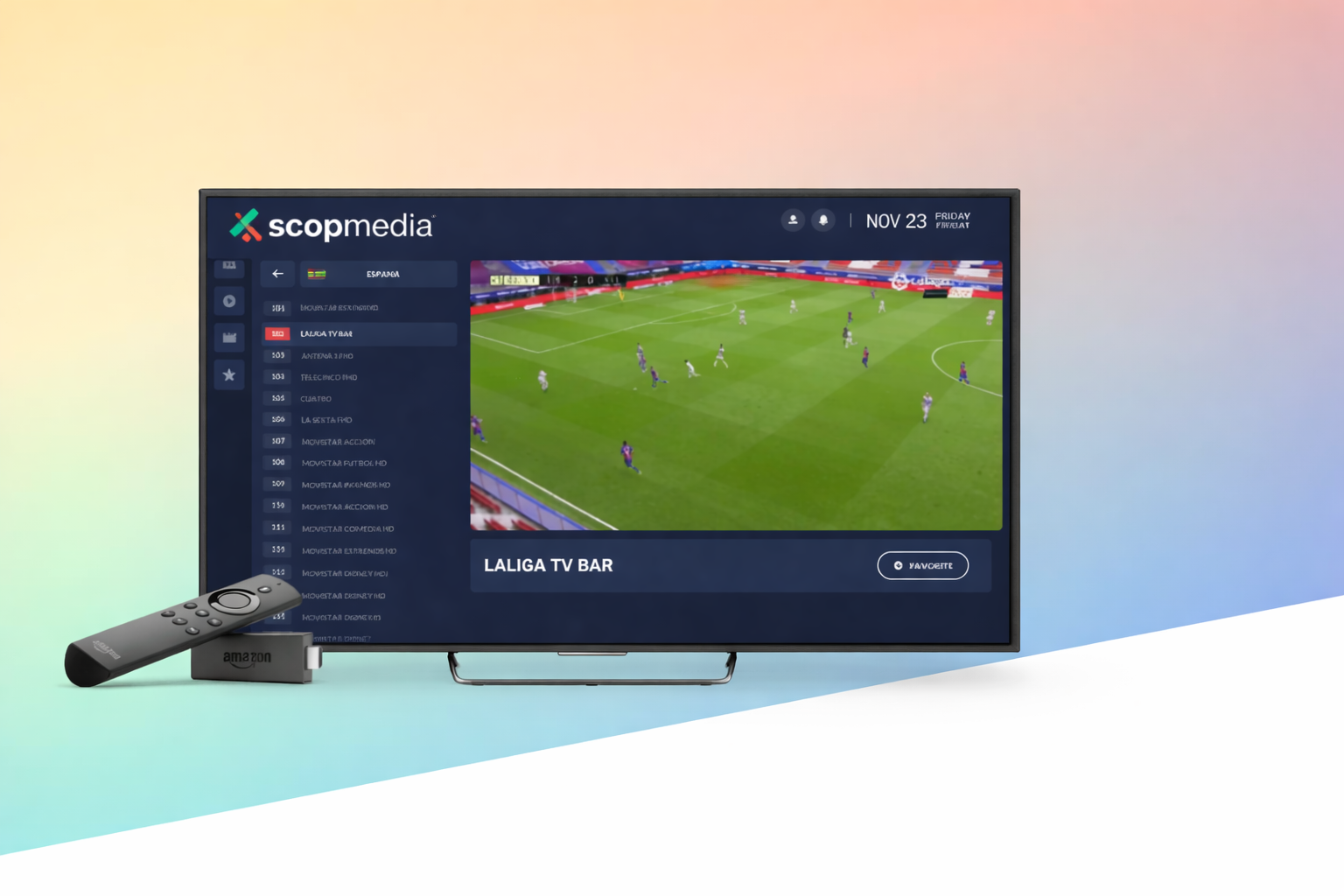
Step 4: Launch and Login
Open the IPTV app from your app drawer. Enter your username and password. Tap Connect. The app will fetch your channel list and EPG data.
Step 5: Configure Remote Control
Use your Android box remote - D-pad for navigation, OK/Enter to select, Back to return. Most apps support channel numbers for quick access. Map any custom buttons if your remote has them.
Step 6: Optional: Add to Home Screen
Pin the IPTV app to your home screen for quick access. Some launchers let you add favourite apps. You are all set - enjoy streaming!
Need Help? Get Support
Our 24/7 support team is ready to assist with your setup. Contact us anytime.