IPTV Setup on Smart TV (Samsung, LG, Sony)
How to install IPTV on Samsung Tizen, LG webOS, and Sony Android TV. Stream 12,000+ channels directly on your Smart TV.
Most Smart TVs can run IPTV apps. Samsung and LG use their own OS, while Sony uses Android TV. The process varies slightly - we cover all major brands.
What You Will Need
- • Active ScopMedia IPTV subscription
- • Stable internet connection (10 Mbps+ for HD, 25 Mbps+ for 4K)
- • Your device connected to the same network
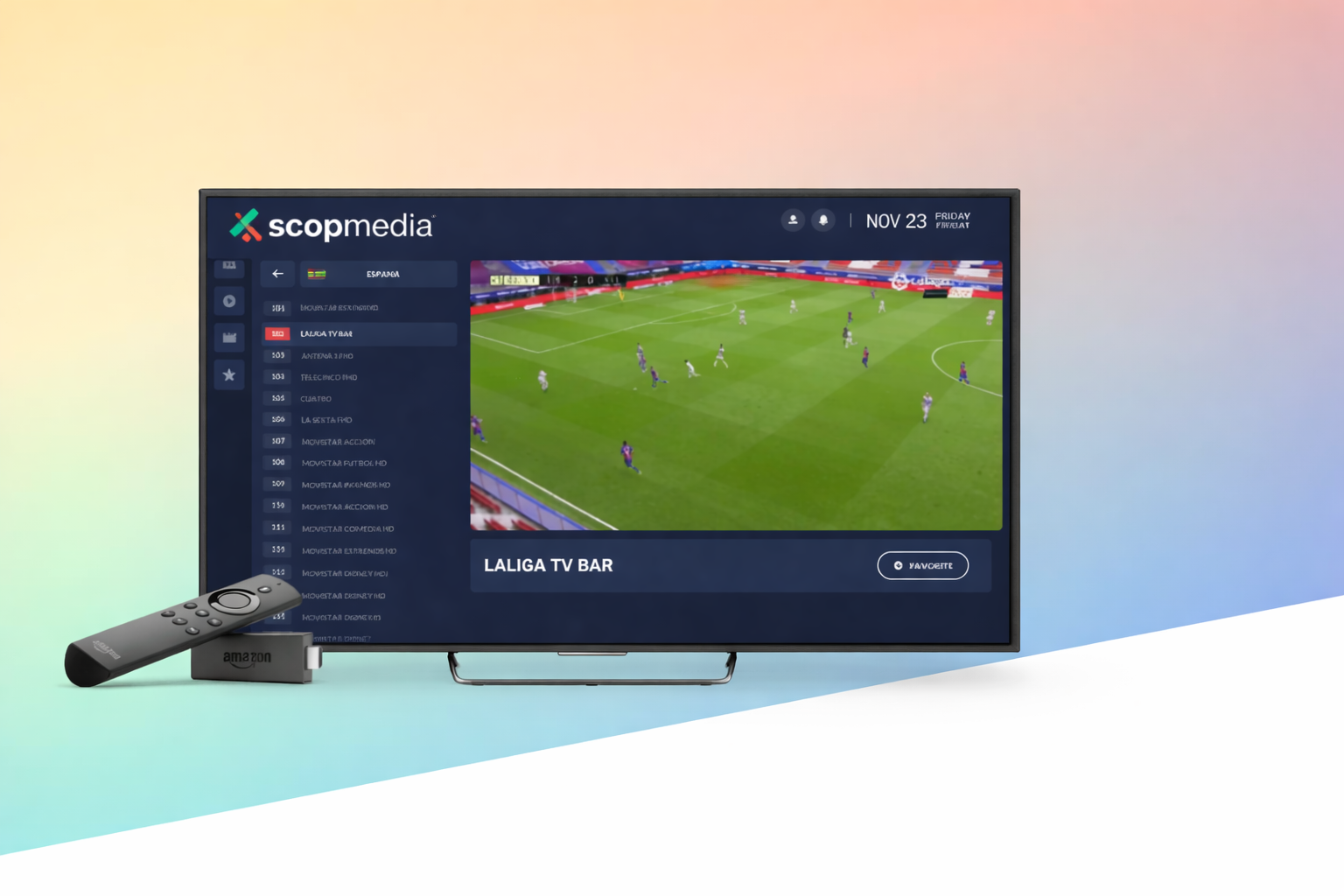
Step 1: Check Your TV Model
Samsung Tizen (2016+) and LG webOS TVs need sideloading or Smart DNS. Sony Android TVs can install apps directly from an APK. Check your TV settings to confirm the operating system.
Step 2: For Samsung/LG: Use Smart DNS or External Player
Option A: Configure Smart DNS on your router (we provide DNS details). Option B: Use an external device like Firestick connected via HDMI for the best experience.
Step 3: For Sony Android TV: Enable Unknown Sources
Go to Settings → Security & restrictions → Unknown sources. Enable it. This allows installation of apps from outside the Google Play Store.
Step 4: Install IPTV App
On Android TV: Use "Send files to TV" app to transfer the APK from your phone, or use Downloader. On Samsung/LG: Connect a Firestick or Android box via HDMI for easiest setup.
Step 5: Enter Subscription Details
Launch the IPTV app. Enter your ScopMedia username and password. Your playlist will load with all channels, EPG, and catch-up TV.
Step 6: Optimize Picture Settings
For best 4K streaming: Set your TV to Game or PC mode to reduce input lag. Enable HDR if supported. Adjust motion settings for smooth playback.
Need Help? Get Support
Our 24/7 support team is ready to assist with your setup. Contact us anytime.