IPTV Setup on Amazon Firestick & Fire TV
Complete step-by-step guide to install and configure IPTV on Amazon Firestick, Fire TV Stick 4K, and Fire TV Cube. Get streaming in 10 minutes.
Amazon Firestick is one of the most popular devices for IPTV streaming. Follow these simple steps to install your IPTV player and start watching 12,000+ channels.
What You Will Need
- • Active ScopMedia IPTV subscription
- • Stable internet connection (10 Mbps+ for HD, 25 Mbps+ for 4K)
- • Your device connected to the same network
Step 1: Enable Apps from Unknown Sources
Go to Settings → My Fire TV → Developer Options. Turn on "Apps from Unknown Sources" and "ADB debugging". This allows you to install apps outside the Amazon Appstore.
Step 2: Install Downloader App
From your Firestick home, search for "Downloader" in the search bar. Install the free Downloader app by AFTVNews. This app lets you download and install APK files.
Step 3: Download IPTV Player
Open Downloader and enter the APK download URL provided in your ScopMedia welcome email. Tap Go to download. Wait for the download to complete.
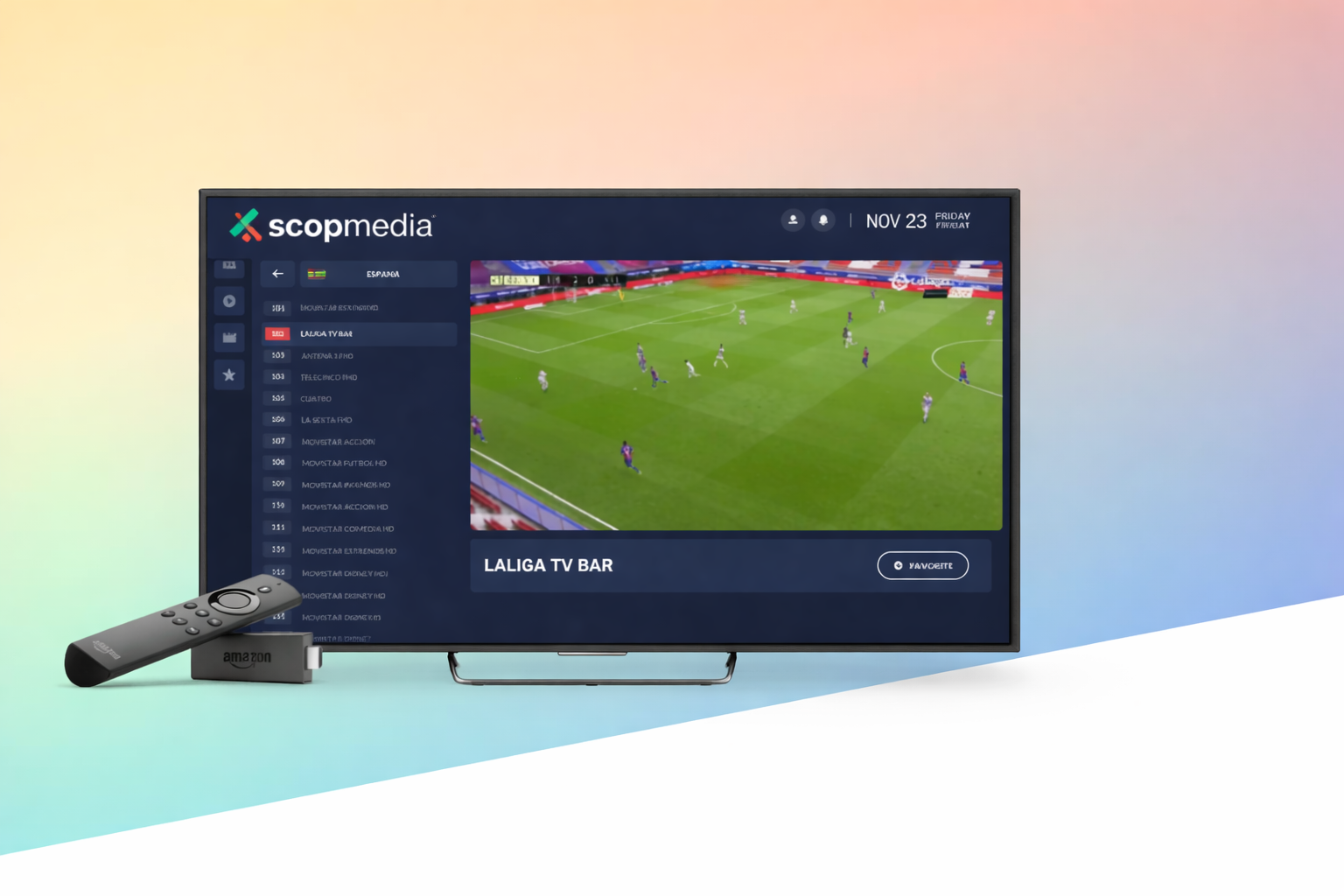
Step 4: Install and Open the App
When download finishes, tap Install. After installation, tap Open. You can delete the APK file to free up space - tap Delete when prompted.
Step 5: Enter Your Login Credentials
Enter your username and password from your ScopMedia subscription email. Tap Connect or Login. Your channel list will load automatically.
Step 6: Start Watching!
Your IPTV is ready! Browse channels, use the EPG guide, and enjoy catch-up TV. Use your remote to navigate - Back button returns to previous screen.
Need Help? Get Support
Our 24/7 support team is ready to assist with your setup. Contact us anytime.